
How to sign-in to my Proxikle Account?
You can sign-in to your Proxikle Account to access Proxikle services or you can individually use the Accounts Dashboard to edit your personal information or view your app subscriptions.
Sign-In through the Web
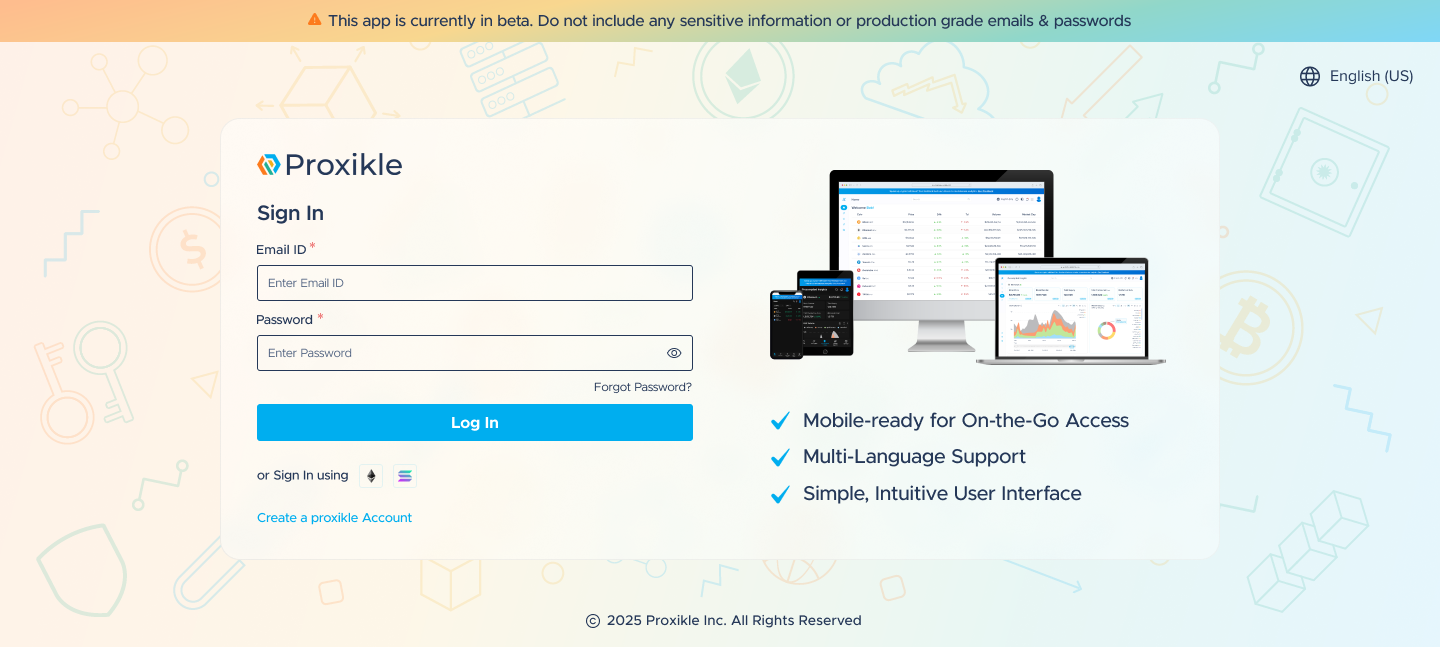
- Access your Proxikle Sign In Page via https://kernel.proxikle.com
- Fill in the Email Address and Password which you used to Sign Up for a Proxikle Account.
- Click Log In.
Alternatively, if you have connected your Ethereum addresses to your Proxikle Account and verified your signature, you can sign-in using that method instead by clicking on the respective Ethereum Icon.
How to change my avatar and personal information in my Proxikle Account?
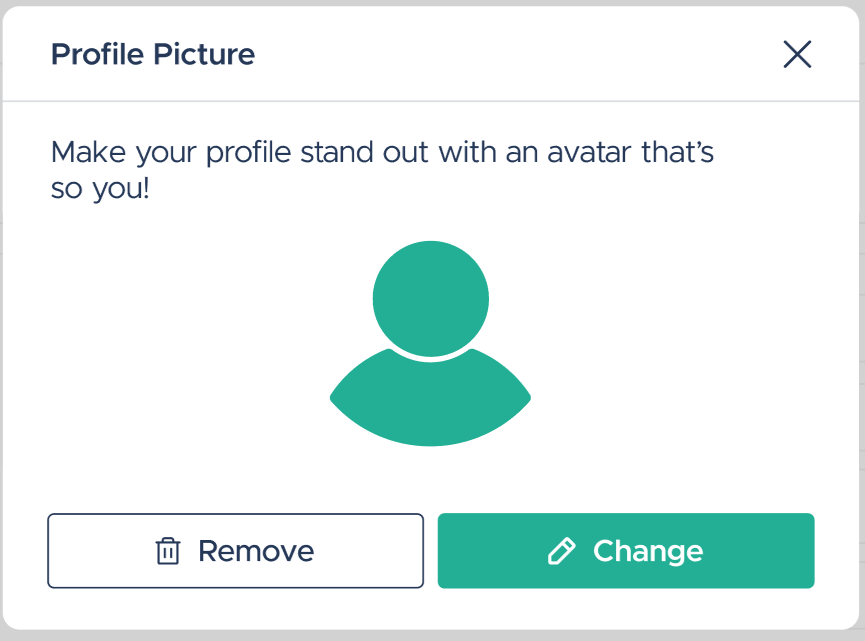
Avatar
If you are willing to change your Proxikle avatar, you can click on the pencil icon near to your avatar.

A pop-up will be displayed which allows you to change the Avatar.
First Name and Last Name
You can change your First Name and Last Name by clicking on the Personal Info tab in the Proxikle Account home page.
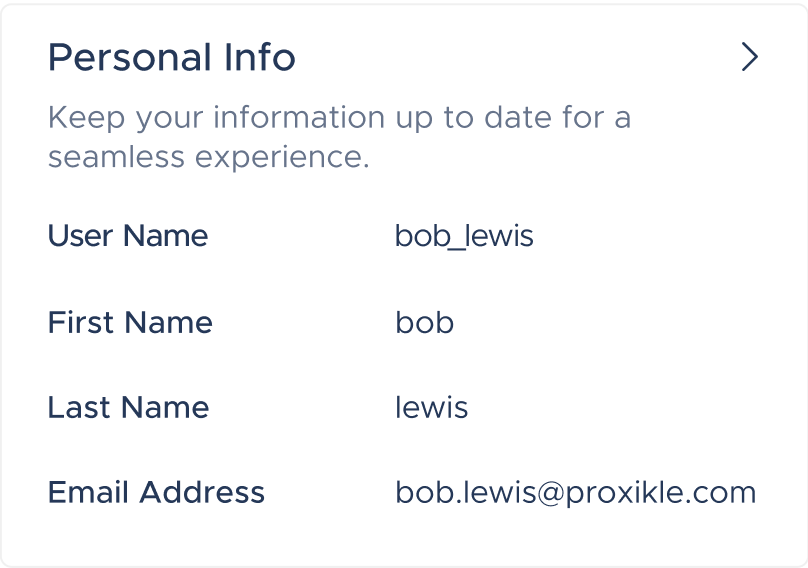
Change my name (button) - redirect to https://kernel.proxikle.com/account/home/personal-info
Manage your web3 addresses
You can connect your Ethereum and Solana wallet to your Proxikle account for easily signing in to the application instead of entering your credentials each and every time. To do this, you can use the Web3 page to connect your wallets. On the Web3 page, click on Connect and sign a message on your Metamask wallet to map your EVM address to your Proxikle username.
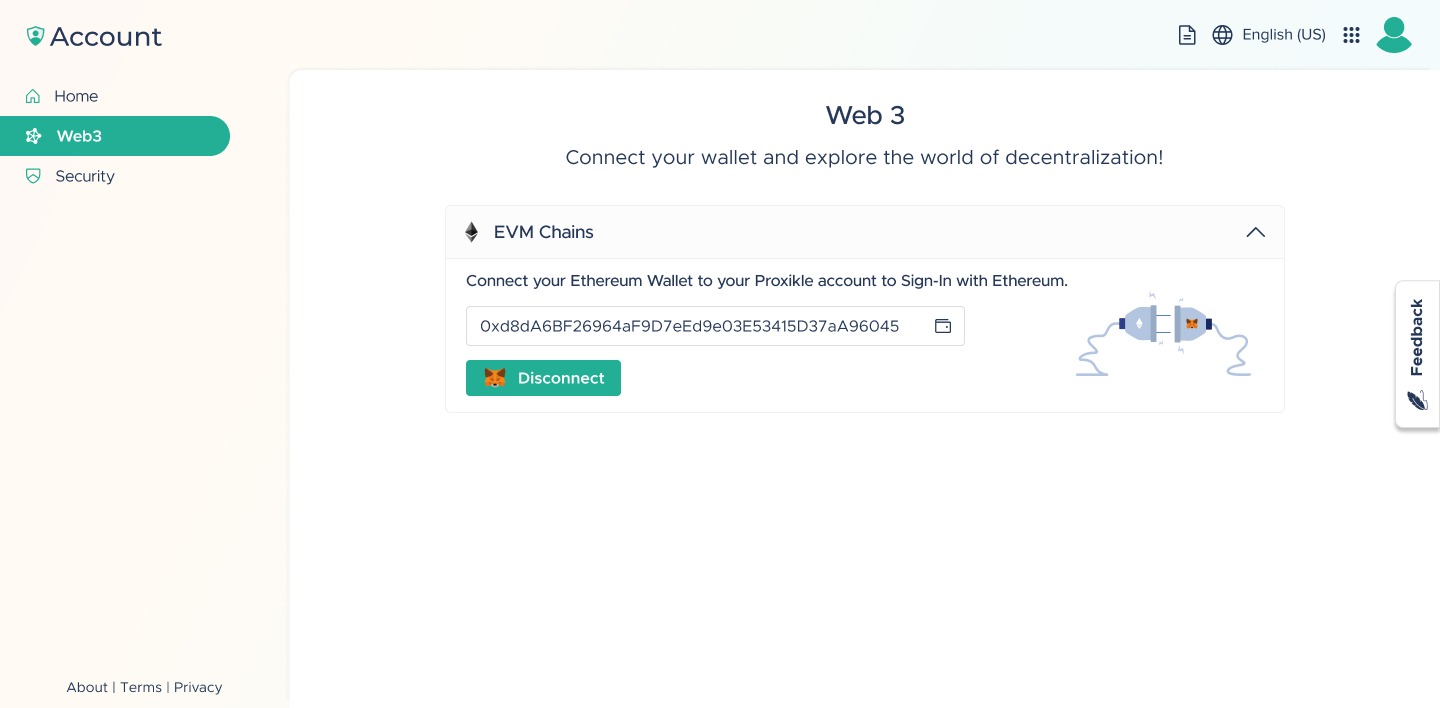
By connecting your wallet with Proxikle account, you agree to the Privacy Policy. See Proxikle | Privacy for more details on how we handle your wallet addresses. After connecting and signing a message from your Ethereum wallet, you can easily click on the “Sign In with Ethereum” button present on the login page to login to your Proxikle account with Ethereum wallet.
How to change your product language across the Proxikle services?
If you are willing to change your Proxikle default language to one of the offered languages such as Español or 中文(简体), you can do so by changing the language in Proxikle Account Home.
1. Sign In to your Proxikle Account.
2. Check for the Language menu in the General Preference tab.
3. Select your preferred language.
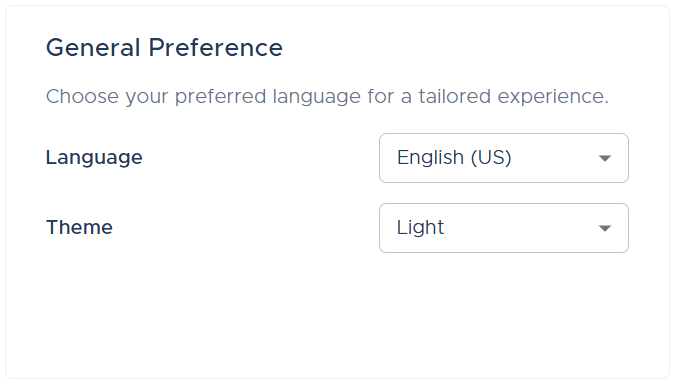
Now your preferred language will be updated across all your Proxikle services.
How to change the theme across Proxikle services?
You can change your Proxikle services themes from the Theme menu in the General Preference tab. Once you have selected your preferred theme, they will be updated across all your Proxikle services.



